Changelog

Follow new updates and improvements to MAGgie.

✨ New Update: Access MAGgie™ Your Way
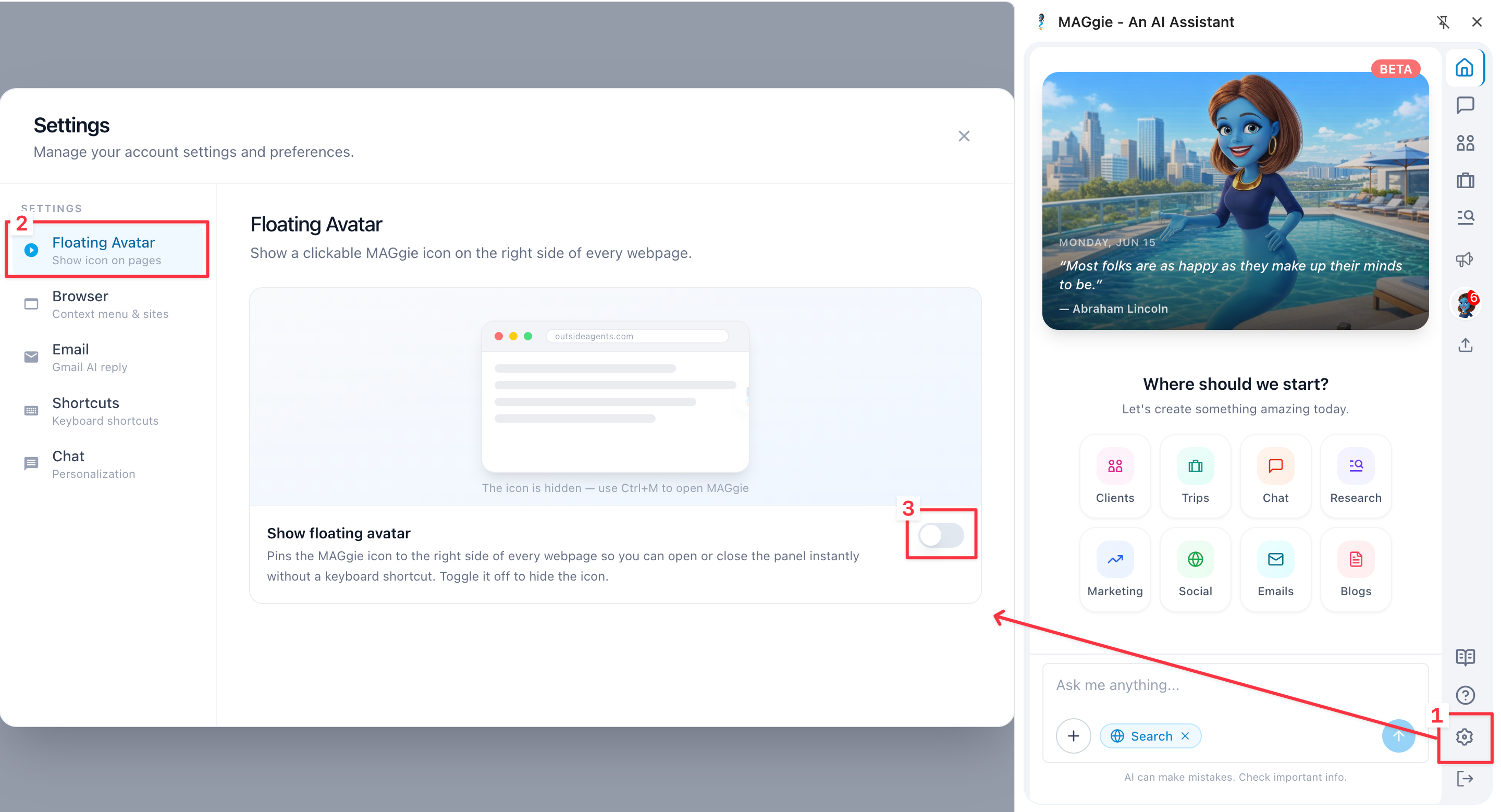
We've introduced a new MAGgie™ Floating Icon that provides quick access while you browse and work. Once enabled, the floating icon appears along the right-hand edge of your screen, keeping MAGgie™ within easy reach whenever you need assistance.

✅ Enable the MAGgie™ Floating Icon

To turn on the floating icon:

  1. Open the MAGgie™ Chrome Extension.

  2. Click Settings.

  3. Find the Floating Icon setting.

  4. Turn the toggle on.

Once enabled, the MAGgie™ Floating Icon will be available whenever you need it.


Manage the Floating Icon

You can choose when and where the floating icon appears by managing it directly from your screen.

  1. Hover over the MAGgie™ pop-up on your screen.

  2. Click the Dismiss (X) button.

  3. Choose one of the following options:

    • Hide until next visit – the pop-up stays hidden for the rest of your current session.

    • Disable for this site – the pop-up won't appear on the current website.

    • Turn off MAGgie™ globally – the pop-up won't appear on any site.

Once you make a selection, MAGgie™ will remain hidden according to your preference. You can re-enable the floating icon at any time from the MAGgie™ Chrome Extension Settings.

This update makes MAGgie™ easier to manage, giving you quick access when you need it and letting you stay focused when you don't.
👉 Haven't installed the MAGgie™ Chrome Extension yet? Get started today.

New

✨ New AI Chat Enhancements Are Here

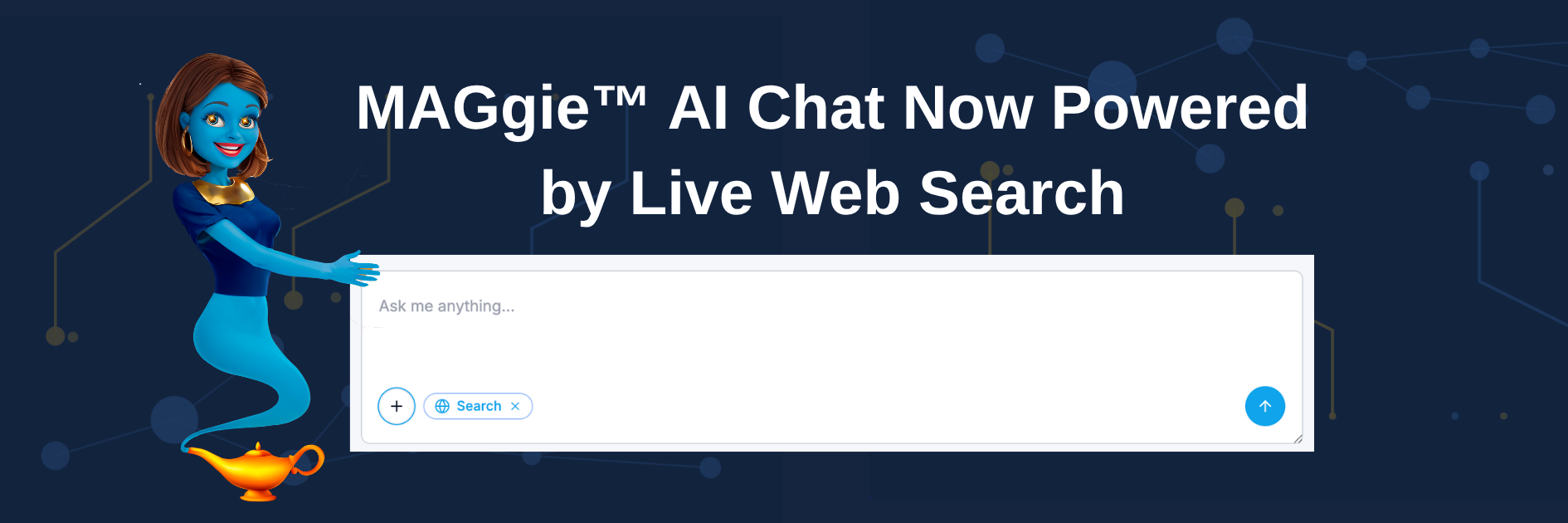
We’ve introduced improvements to the MAGgie™ AI Chat experience across the Chrome Extension and Web App, helping you access more up-to-date information directly within your workflow.

🌐 Web Search in MAGgie™ AI Chat

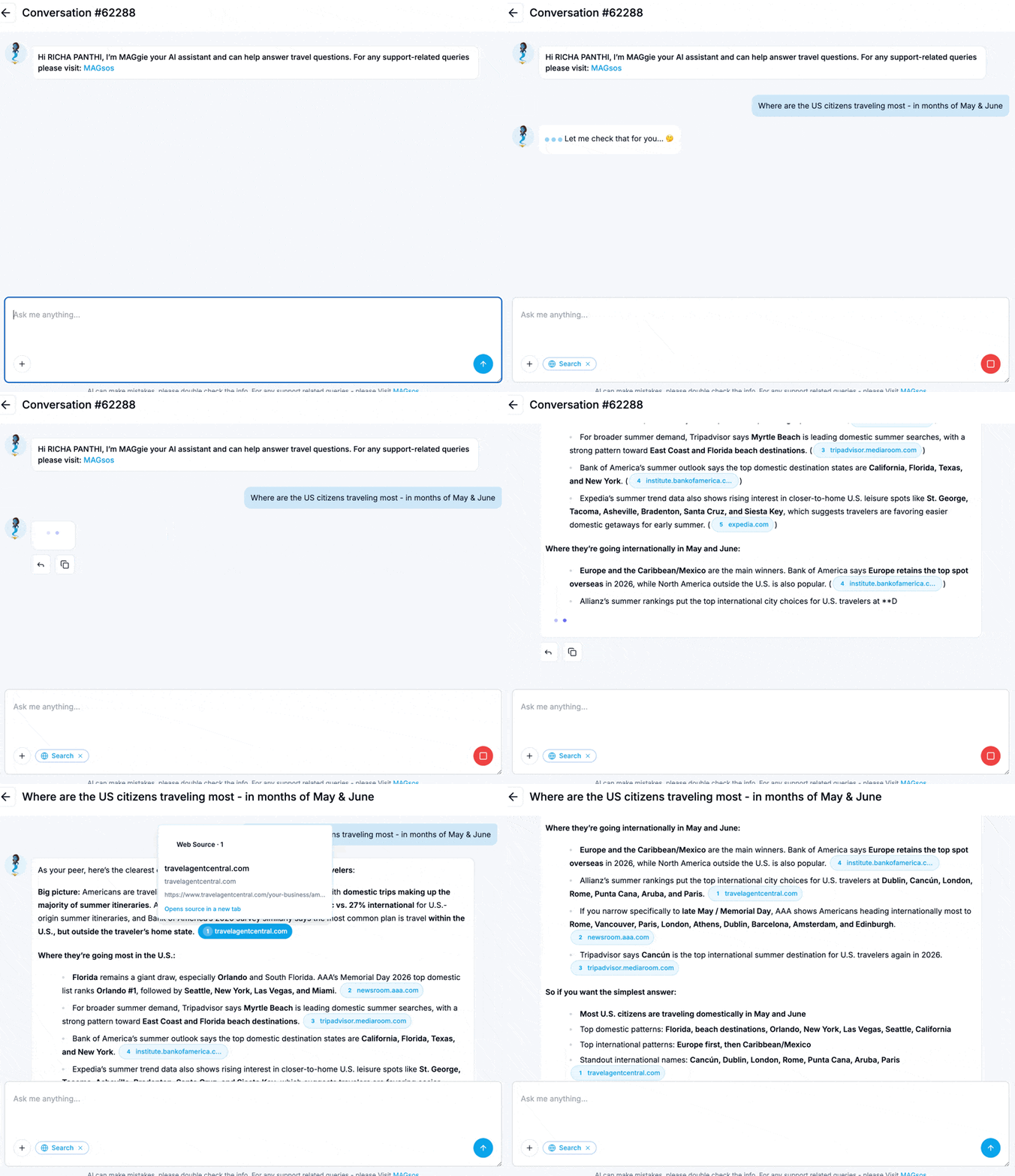
MAGgie™ can now search the web in real time to provide more up-to-date and relevant responses.

🔎 Real-time web-powered answers for broader and fresher information
📚 Inline source links so you can instantly verify and explore references

How to enable Web Search?

  1. Click on the “+” icon in the chat box and select the “Web Search” option.

  2. You will see the label “Search” with a globe icon - this indicates that Web Search is enabled

  3. To disable it, click the “X” icon on the “Search” label.


💬 Long Chat? Open It Instantly in the Web App

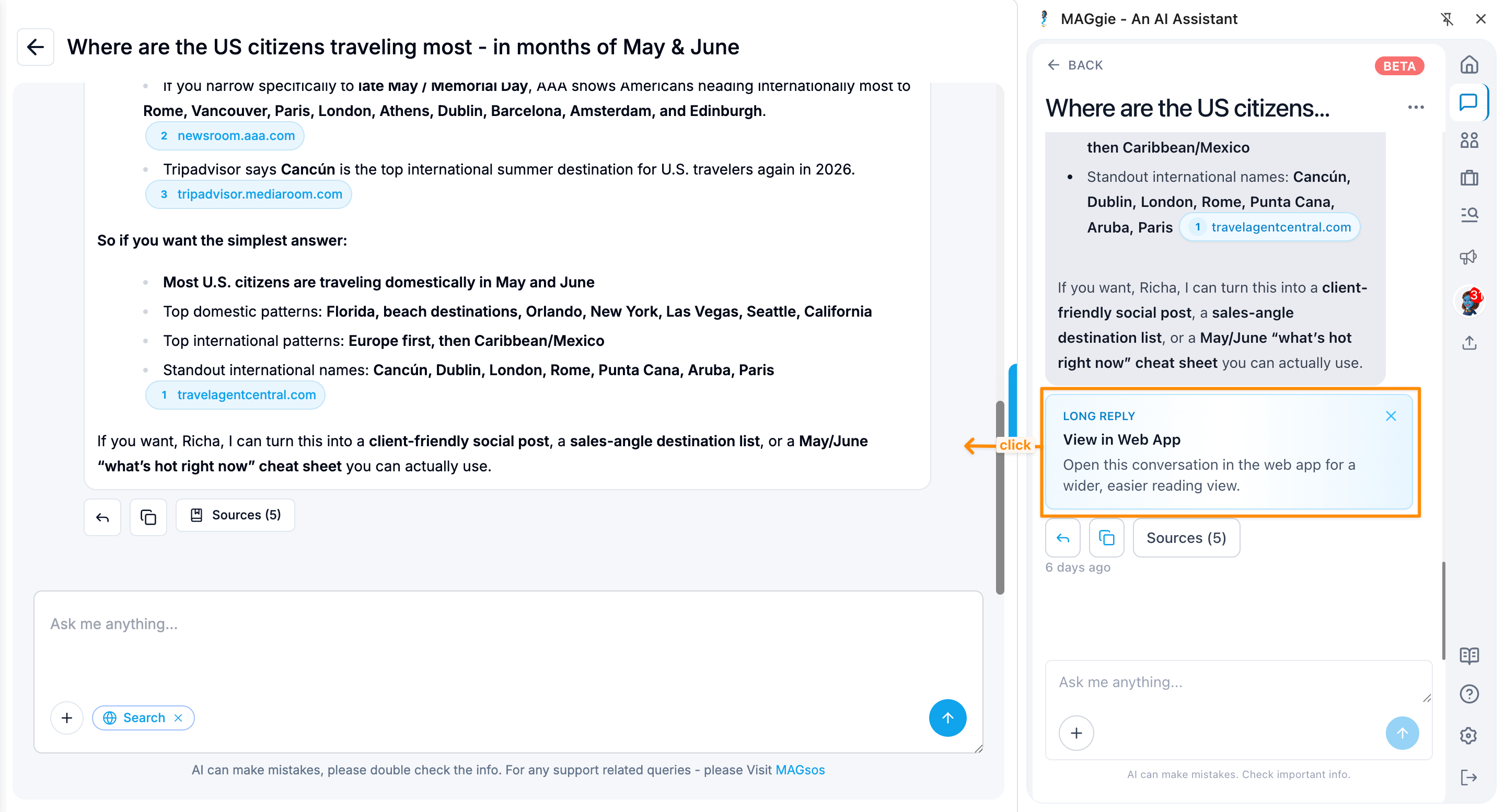
When a conversation gets too long inside the compact Chrome Extension view, you can instantly open that same chat in the Web App with a single click - no need to manually open MAGgie™ web app, search for the thread, or switch contexts.

Continue right where you left off in a larger, more comfortable workspace.


👉 Try the new MAGgie™ AI Chat experience now.

Improved

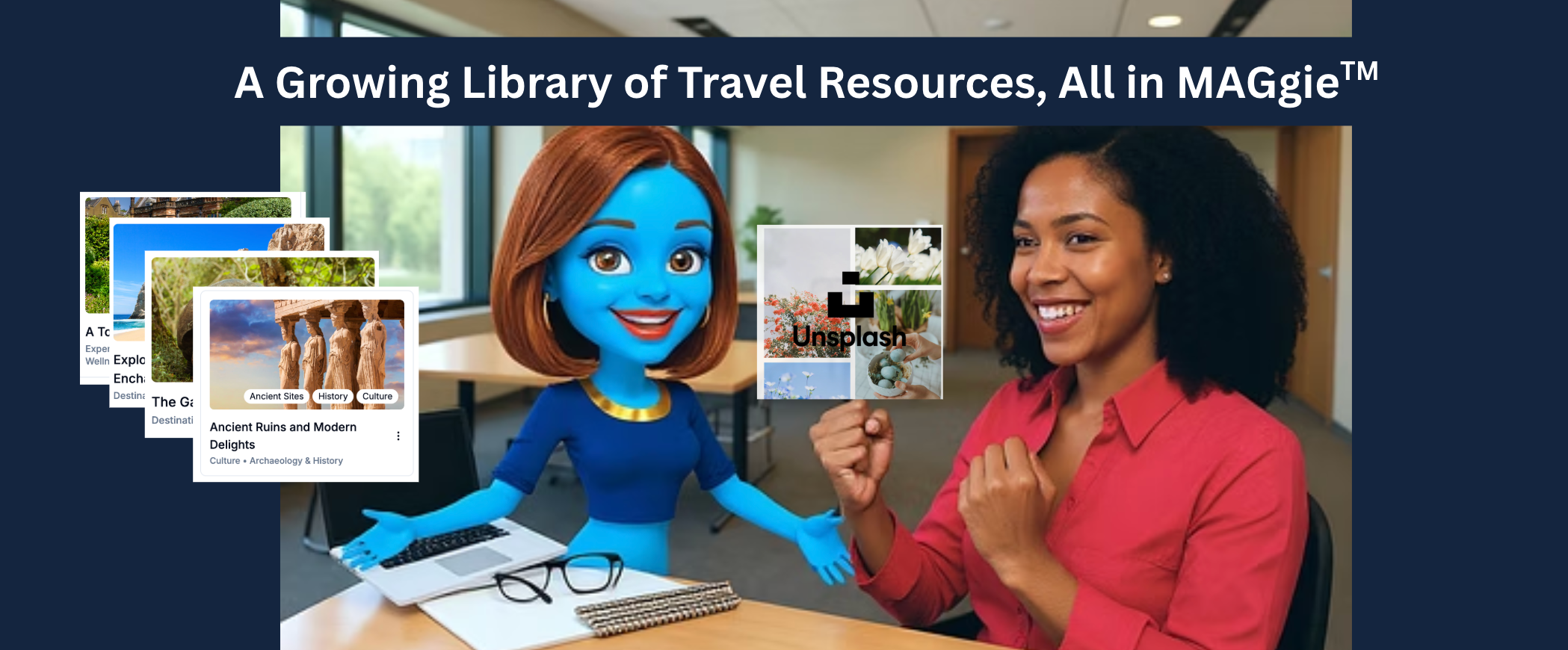
✨ MAGgie™: Growing Library of Travel Resources

Bringing you more ways to discover, create and share - enhancing your day-to-day experience.


🌍 Introducing Storylines

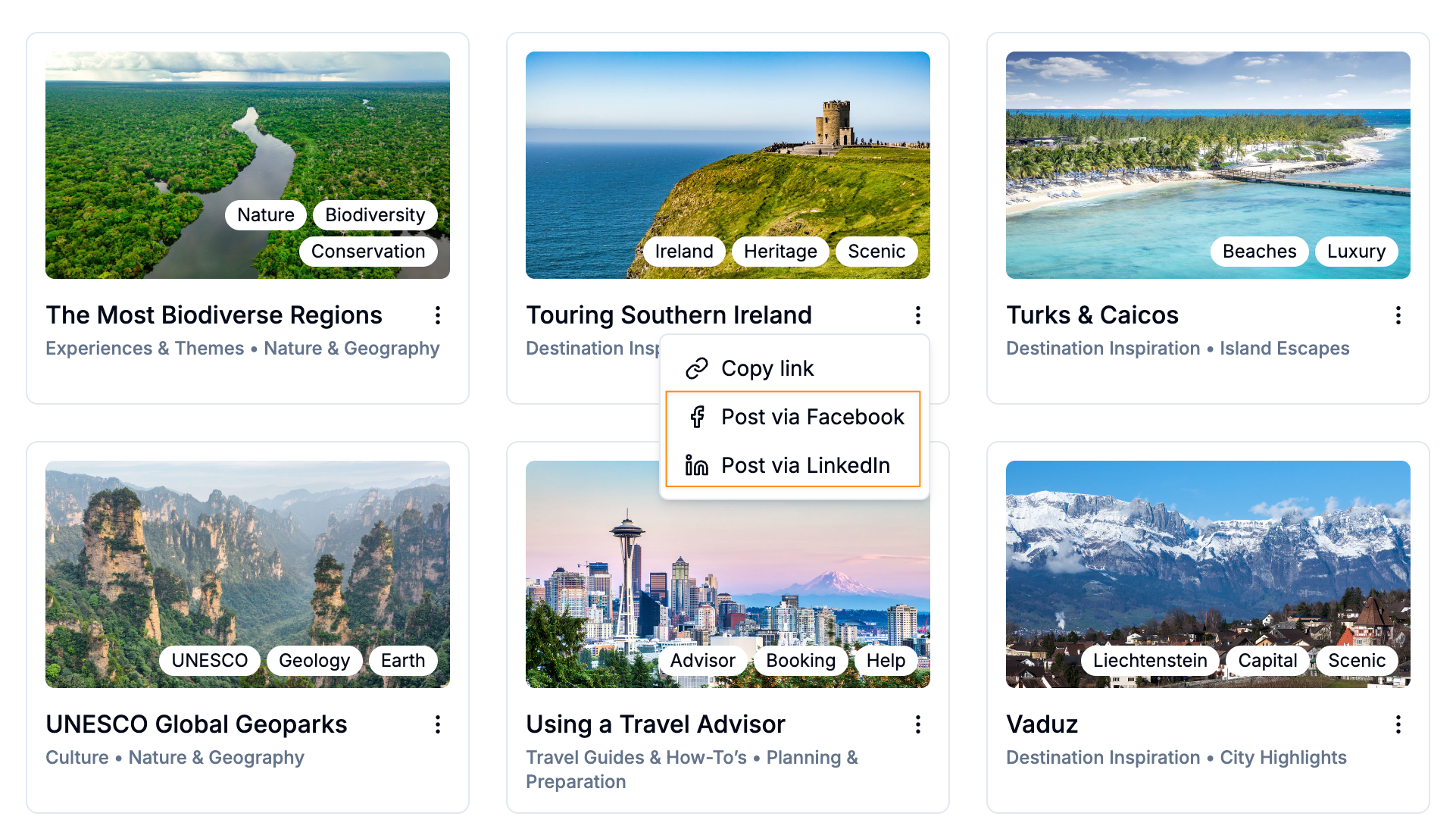
We’re excited to officially introduce Storylines, your go-to library for ready-to-use travel inspiration, so you’ll never run out of content to delight your customers.

Covering a wide range of travel themes (i.e., luxury, history, etc.), each Storyline helps your clients better understand destinations while enabling you to plan more meaningful trips.

Each Storyline includes:

  • Visually rich content to spark ideas instantly

  • Smart organization by region, category, themes and tags

📣 Instantly turn Storylines into social posts with just a few clicks

From the menu, select Post via Facebook or Post via LinkedIn, and MAGgie™ will automatically generate a post with the link to the storyline.

👉 Explore Storylines now!


🖼️ Unsplash Integration

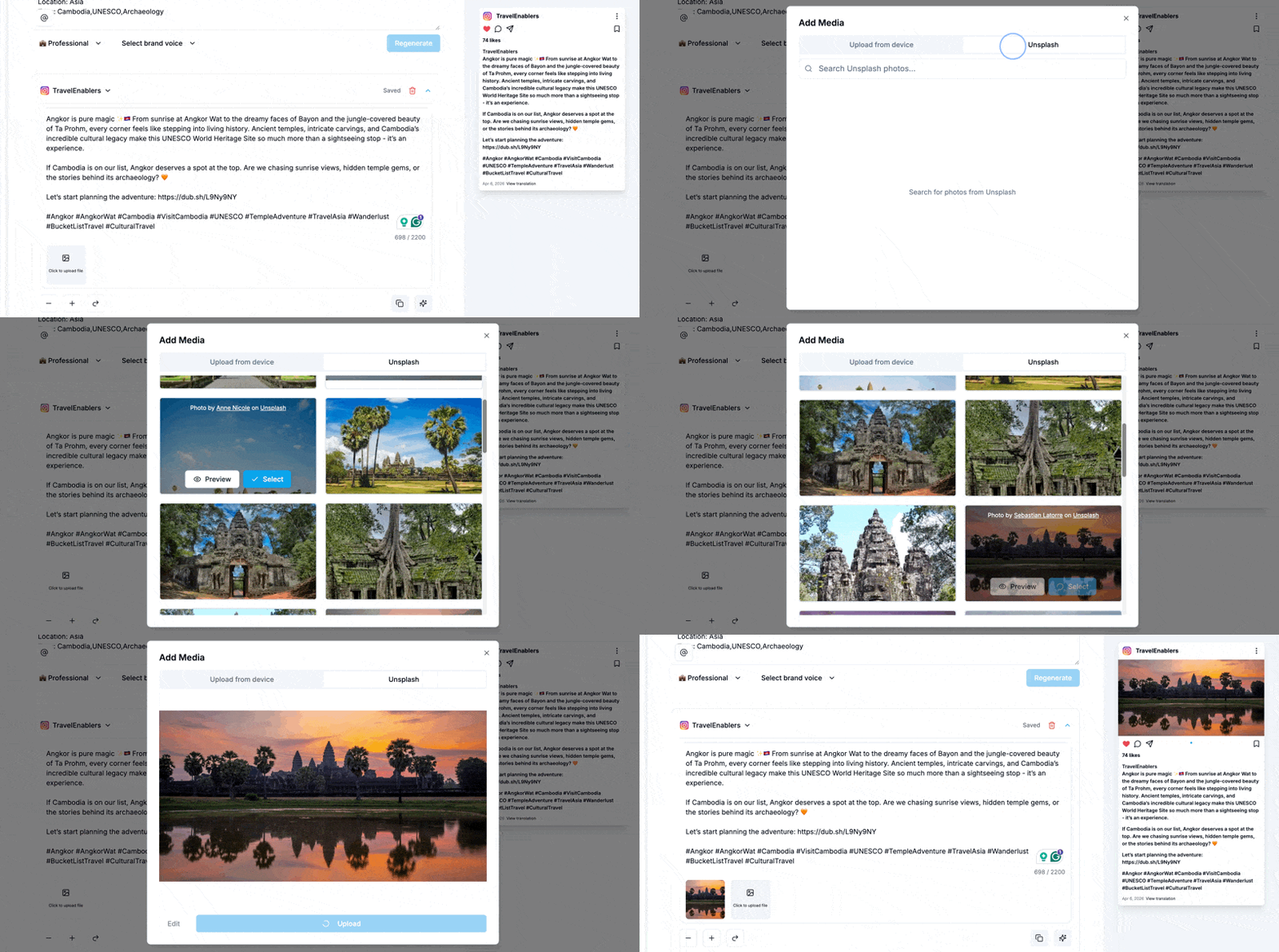
We’re also excited to introduce our Unsplash integration, giving you access to a large library of high-quality images within MAGgie™.

You can now easily discover and add beautiful visuals to your content without leaving the platform. For detailed documentation, click here.

👉 Create a post and explore Unsplash images now!

New

Earlier updates